
Instant Invite – Simple Tutorial
Follow these 4 clear steps to create, proof, and finalize your invitation with screenshots to guide you.
1. Place Order
2. Fill Details
3. Proof Reading
4. Submit
1
Place Your Order
Choose your template and confirm the order to access the invitation editor.
- Shortlist Template: Browse the available designs and select the one you like most.
- Place Order: Add the invite template to your cart and checkout as per your requirement.
- Invitation Editor: After successful payment, click on the Edit Invite link from your order page.

Place order as per your requirement

Click on Edit Invite to proceed
2
Fill the Details
Enter your event information and personalize the template.
- Fill Content: Add names, dates, venue details, and RSVP info as required.
- Customize Clipart: Add, change, or remove clipart to match your function.
- Reorder Functions: Adjust the sequence of sections by moving them up or down.

Enable/Disable slide using this
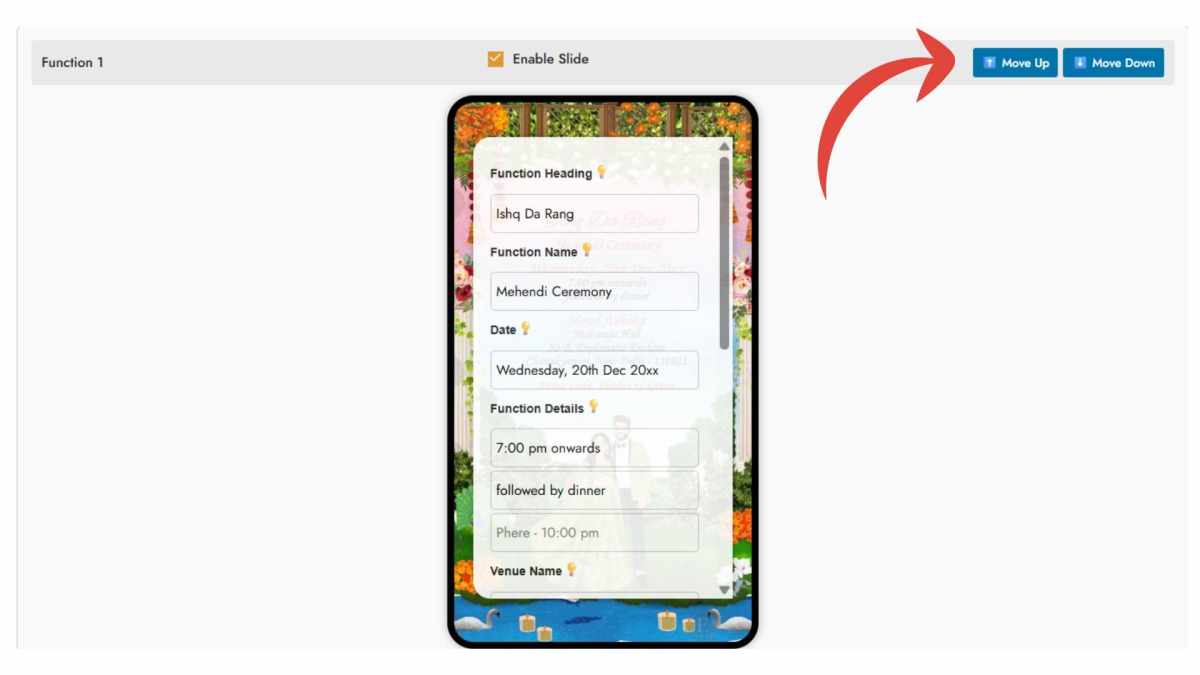
Change order of slides using this button.

Add/Change/Remove Bride Groom Clipart
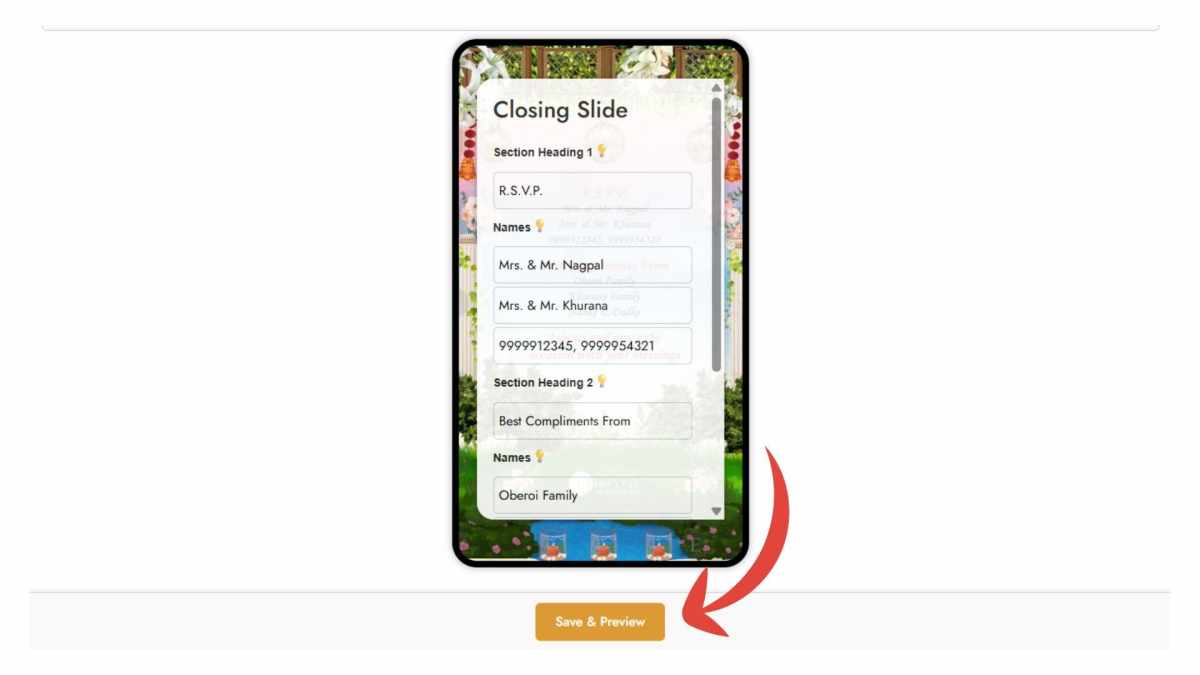
Submit and Preview to preview the content
3
Proof Reading
Review your invite thoroughly before submission.
- Click Submit & Preview to generate a proof version.
- If needed, click Edit Content to correct any mistakes.
- Use the Font Dropdown to test different font styles.
- For video invites, you can also Change Song.
- For PDF/JPG invites, use Edit Layout to reposition text or clipart blocks (video layouts remain fixed as per the sample video).

Change fonts if required.

Edit content if required.

Change song if required.

Shortist song from playlist or upload your own.

Click on Edit Layout to change position if required.

Use arrow buttons and save layout editing.
Take your time during proof reading—this is the last chance to polish your invite.
4
Submit Final Invite
Confirm and finalize your invitation.
- Submit: Click the final submit button to render your invite.
- Double‑Check: Ensure everything is correct—after this step, no more edits can be made.
- View Final Video: Your processed invite will be available to watch.
- Download & Share: Download the file and share it instantly with your guests.

Submit for final invite.

Make sure everything is correct before doing this.

Rendering has started for final invite video.

Click on download button to share with your guests.
Need help? Contact our support team from your order page.